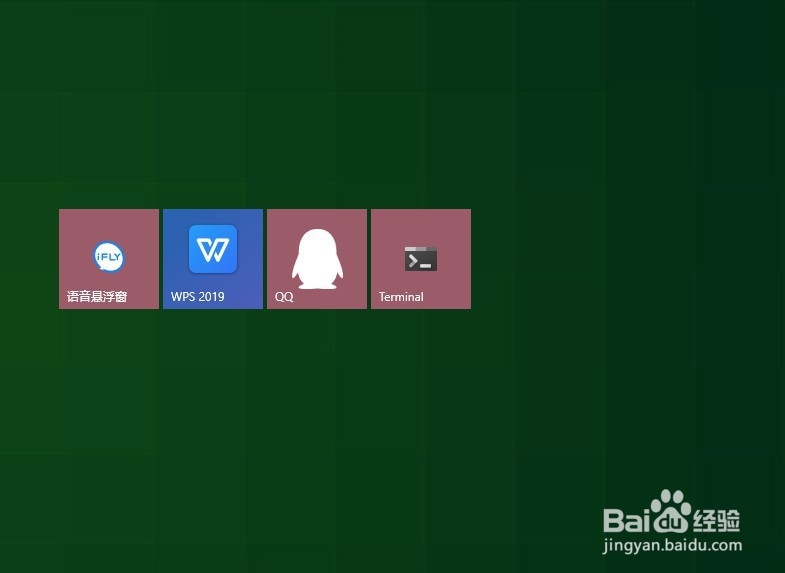
1、首先,点击电脑的【Windows】键

2、接着,点击打开【Windows Terminal】
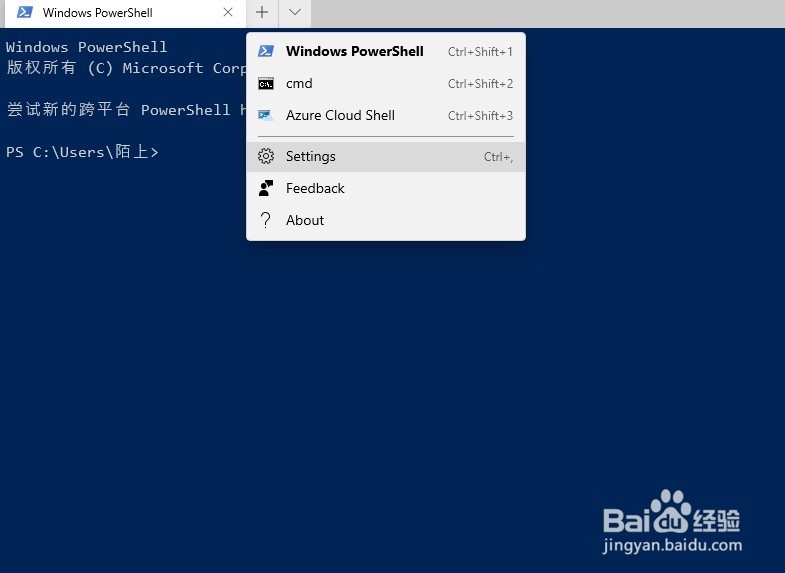
3、然后,点击列表中的【settings】
4、随后,在右侧输入如下代码
{
"globals" :
{
"alwaysShowTabs" : true,
"copyOnSelect" : false,
"defaultProfile" : "{61c54bbd-c2c6-5271-96e7-009a87ff44bf}",
"initialCols" : 120,
"initialRows" : 30,
"keybindings" :
[
...
],
"requestedTheme" : "system",
"showTabsInTitlebar" : true,
"showTerminalTitleInTitlebar" : true,
"wordDelimiters" : " ./\\()\"'-:,.;<>~!@#$%^&*|+=[]{}~?\u2502"
},
"profiles" :
[
{
"acrylicOpacity" : 0.5,
"background" : "#012456",
"closeOnExit" : true,
"colorScheme" : "Campbell",
"commandline" : "powershell.exe",
"cursorColor" : "#FFFFFF",
"cursorShape" : "bar",
"fontFace" : "Consolas",
"fontSize" : 10,
"guid" : "{61c54bbd-c2c6-5271-96e7-009a87ff44bf}",
"historySize" : 9001,
"ico" : "m-appx:///ProfileIcons/{61c54bbd-c2c6-5271-96e7-009a87ff44bf}.png",
"name" : "Windows PowerShell",
"padding" : "0, 0, 0, 0",
"snapOnInput" : true,
"startingDirectory" : "%USERPROFILE%",
"useAcrylic" : false
},
...
],
"schemes" :
[
...
]
}

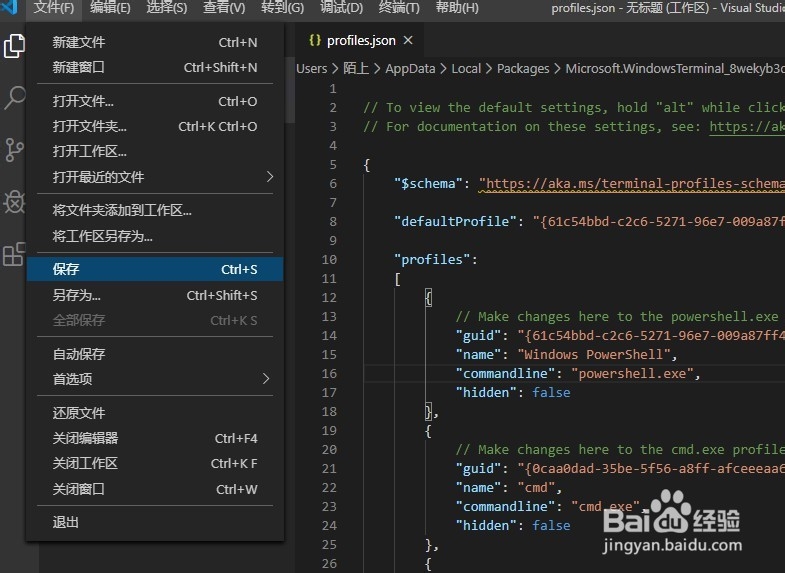
5、最后,点击文件列表中的保存即可